
Cross Mode Sprites
The rather strange title of this article means using sprites originally designed in one mode in another mode. Have you worked in Mode 2 but then found that most of your sprites don't use more than a few colours each? Say black, red, and green for one sprite or blue and yellow for another?
If so you will have realised that memory is being wasted because 4 bits are reserved for one pixel and you are only using one or two bits for a two- or four-coloured sprite respectively. In this article we'll be discussing ways of compacting the graphics data so that all bits are used efficiently:
- Four-colour sprites in 16-colour mode 2. Sprites originally designed in Mode 5 converted to Mode 2 meaning twice as many sprites can be stored in memory.
- Two-colour sprites in mode 2. Sprites originally designed in Mode 4 converted to Mode 2 so four times as many sprites can be used. A bit like using graphics characters except much faster.
- Two-colour sprites in four-colour modes (Mode 1 or 5). Twice as many sprites can be fitted into memory.
In each case I will present a demonstration program that shows the original sprite and sprite data in the original mode followed the converted sprite data before displaying the converted sprite in the new mode. The conversion process and sprite plotting is done in machine code for speed.
1. Four Colour Sprites in Mode 2
We start with a sprite designed in Mode 5. There are two bits per pixel in Mode 5, i.e. four pixels per byte appearing side by side on the screen. If we call the leftmost pixel p3, the next one to the right p2 and so on down to pixel p0 then the bits of the byte are arranged:
| Bit | 7 | 6 | 5 | 4 | 3 | 2 | 1 | 0 |
| Value | 128 | 64 | 32 | 16 | 8 | 4 | 2 | 1 |
| Meaning | p3 | p2 | p1 | p0 | p3 | p2 | p1 | p0 |
| Bit 1 | Bit 1 | Bit 1 | Bit 1 | Bit 0 | Bit 0 | Bit 0 | Bit 0 |
In other words, the high bits of the colours are in the high nibble and the low bits in the low nibble. Example: to find the value of a black-red-yellow-white combination (assuming no colours have been changed with VDU19):
| Decimal Value | Binary Value | |
| Black | 0 | 00 (bit 1=0, bit 0=0) |
| Red | 1 | 01 (bit 1=0, bit 0=1) |
| Yellow | 2 | 10 (bit 1=1, bit 0=0) |
| White | 3 | 11 (bit 1=1, bit 0=1) |
| Bit | 7 | 6 | 5 | 4 | 3 | 2 | 1 | 0 |
| Value | 128 | 64 | 32 | 16 | 8 | 4 | 2 | 1 |
| 0 | 0 | 1 | 1 | 0 | 1 | 0 | 1 |
Adding up the values where there is a 1 in the bottom row we get 32 + 16 + 4 + 1 = 53. If you have good eyesight, you can verify this by poking 53 onto the mode 5 screen - type MODE 5:?&6C00=53.
In Mode 2, however, things are different. There are four bits per pixel (two pixels per byte). If we call the lefthand pixel p1 and the right-hand p0 the bits of the byte are arranged thus:
| Bit | 7 | 6 | 5 | 4 | 3 | 2 | 1 | 0 |
| Value | 128 | 64 | 32 | 16 | 8 | 4 | 2 | 1 |
| Meaning | p1 | p0 | p1 | p0 | p1 | p0 | p1 | p0 |
| Bit 3 | Bit 3 | Bit 2 | Bit 2 | Bit 1 | Bit 1 | Bit 0 | Bit 0 |
Example: the value of a red-cyan combination:
| Decimal Value | Binary Value | |
| Red | 1 | 0001 |
| Magenta | 5 | 0110 |
| Bit | 7 | 6 | 5 | 4 | 3 | 2 | 1 | 0 |
| Value | 128 | 64 | 32 | 16 | 8 | 4 | 2 | 1 |
| 0 | 0 | 0 | 1 | 0 | 1 | 1 | 0 |
Adding up gives us 16 + 4 + 2 = 22. Convince yourself by poking 22 into the Mode 2 screen - MODE 2:?&5800=22. Make sure you understand this as what I will explain below may be hard to understand.
We're faced with the problem of rotating the bits out of a byte in the mode 5 format and rearranging them in the mode 2 'interleaved' layout. This is complex not to mention time-consuming as far as program execution is concerned. So what we do is to convert the data into yet another format that makes extraction of bits easier. Consider this diagram:
| p3 | p2 | p1 | p0 |
| p7 | p6 | p5 | p4 |
| <------1 column in mode 5------> <-----2 columns in mode 2------> | |||
Here we have two bytes of a mode 5 pixel where pixels 0-3 make up the first byte of the column and pixels 4-7 the second byte in the column. In Mode 2, however, pixels 2+3 and 6+7 make up the first and second bytes in one column; pixels 0+1 and 4+5 comprise the first and second bytes in the next column to the right.
| Byte 0: | ||||||||
| Bit | 7 | 6 | 5 | 4 | 3 | 2 | 1 | 0 |
| Value | 128 | 64 | 32 | 16 | 8 | 4 | 2 | 1 |
| Value | p3 | p3 | p2 | p2 | p7 | p7 | p6 | p6 |
| Bit 1 | Bit 0 | Bit 1 | Bit 0 | Bit 1 | Bit 0 | Bit 1 | Bit 0 | |
| Byte 1: | ||||||||
| Bit | 7 | 6 | 5 | 4 | 3 | 2 | 1 | 0 |
| Value | 128 | 64 | 32 | 16 | 8 | 4 | 2 | 1 |
| Value | p1 | p1 | p0 | p0 | p5 | p5 | p4 | p4 |
| Bit 1 | Bit 0 | Bit 1 | Bit 0 | Bit 1 | Bit 0 | Bit 1 | Bit 0 | |
To expand the sprite data we rotate out successive pairs of bits as an index into a colour-code table comprising four entries for four colours. An entry gives a particular n-black mode 2 pixel code. Say the sprite's colours were black, green, yellow, and white. The table would be [0,8,10,42]. Also say that byte 0 is decimal 144 = binary 10010000 and byte 1 is dec.21 = bin.00010101. Bits 7+6 of byte 1 are bin.10 = dec.2 giving yellow from the table for pix.3. Bits 5+4 of byte 1 are bin.01 = dec.1 giving green for pix.2. Carrying on in this way gives:
| Column 0 | Column 1 | ||
| p1 | p0 | p1 | p0 |
| Yellow | Green | Black | Green |
| Black | Black | Green | Green |
We don't have to worry about working out the data, the computer will do it automatically.  Program 4CDEMO takes an acorn shape, originally designed with a Mode 5 sprite editor, converts the data, and plots the acorn again in Mode 2. You don't have to understand how the conversion process works to use it, simply substitute CLMNS (columns) and CHRROWS (character rows) in line 300 for the size of your sprite. Set X% and Y% (or X and Y registers if working in machine code) to point to the Mode 5 sprite data and make a CALL to CONVERT (line 90). Afterwards BFFR, the buffer, contains the converted data, which SPRITE then plots onto the Mode 2 screen. To show how fast it is, the entire Mode 2 display is filled with acorns.
2. Two Colour Sprites in Mode 2
We can use our knowledge to pack even more sprites into memory if all that is needed are sprites in two colours. Regard this as a more advanced form of user-defined characters. The special data format is as follows:
| p7 | p6 | p5 | p4 | p3 | p2 | p1 | p0 |
| p15 | p14 | p13 | p12 | p11 | p10 | p9 | p8 |
| p23 | p22 | p21 | p20 | p19 | p18 | p17 | p16 |
| p31 | p30 | p29 | p28 | p27 | p26 | p25 | p24 |
| <-------one column in mode 4------> | |||||||
| <------four columns in mode 2-----> | |||||||
Byte 1 contains data for p7, p6, p15, p14, p23, p22, p31, p30; byte 2 the data for p5, p4, p13, p12, p21, p20, p29, p28; byte 3 the data for p3, p2, p11, p10, p19, p18, p27, p26; and byte 3 the data for p1, p0, p9, p8, p17, p16, p25, p24.
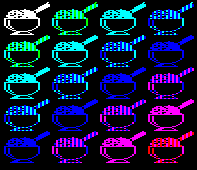 Program 2CDEMO2 demonstrates by converting the data for an ice cream sundae, displaying it once then filling the screen with sundaes. As before, the X and Y registers or resident integer variables (line 80) are set to point to the sprite in its original mode 4 format to be CONVERTed. BFFR contains the transformed data. SPRITE plots the shape on the screen. Notice that location &75 contains the mask, that is, the value with which every byte is ANDed before being plotted. Don't forget that there are two pixels per byte in mode 2 so this mask can represent two colours giving a stripey effect. The SUNDAES routine fills the screen with sundaes in bands of varying colour.
3. Two Colour Sprites in Mode 1 or 5
Program 2CDEMO1 is like 2CDEMO2 except it is designed for use in Mode 1 or 5. The special format is:
| p3 | p2 | p1 | p0 | Byte contains data for p3,p2,p1,p0,p7,p6,p5,p4 | |
| p7 | p6 | p5 | p4 | ||
| <--one column--> | |||||
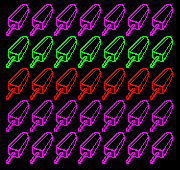 A slightly different CONVERT routine transforms the ice lolly data and puts it into BFFR. The SPRITE routine is simpler than before - no rotations here - and each nybble is sent to PUT, which duplicates the low nybble in the high nybble position, e.g. 0 -> &00, 1 -> &11, 2 ->
&22, etc. These numbers represent combinations of white or black pixels in four-colour modes. As before, the mask is stored in location &75 and, as the demonstration shows by filling the display with ice lollies, some interesting stripey effects can be obtained by using values other than 15 (red), 240 (yellow) or 255 (white).
A slightly different CONVERT routine transforms the ice lolly data and puts it into BFFR. The SPRITE routine is simpler than before - no rotations here - and each nybble is sent to PUT, which duplicates the low nybble in the high nybble position, e.g. 0 -> &00, 1 -> &11, 2 ->
&22, etc. These numbers represent combinations of white or black pixels in four-colour modes. As before, the mask is stored in location &75 and, as the demonstration shows by filling the display with ice lollies, some interesting stripey effects can be obtained by using values other than 15 (red), 240 (yellow) or 255 (white).
Double Height Sprites
Have you ever idly designed a sprite on square graph paper only to discover that you don't like its appearance in Mode 2 or 5? Posh people say that Mode 5 has an aspect ratio - the pixels aren't square but rectangular like little bricks. Usually you need to have compensate by having twice the number of pixels vertically than horizontally.
Now you can cheat and have your sprite plotted double height, thus restoring the original aspect ratio. It also saves memory as well as you get a sprite filling twice the normal space on the screen. You may have seen some of my games, which employ this technique. Shields and County Quiz published in EUG #63, for instance.
Program DHDEMO operates like the demonstrations in the first half of this article. A sprite, this time the Essex coat of arms, is converted into a special format for optimum plotting speed. Again, the columns and character rows of the original sprite are declared in line 250. CONVERT converts the data and places it in the BFFR; SPRITE does the plotting.
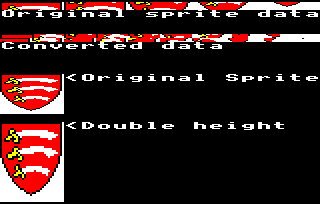
Here's how it works: we pretend for a moment that there are only four rows per column (instead of the usual eight) because each byte of data is put into the screen RAM twice. This saves a lot of fuss - if we worked with conventional data stored column by column, character row by character row, we would have to plot four bytes (half a column), save the screen address while temporarily crossing over to the next character row to plot the other four bytes, then restore the original screen address before adding eight to get to the next column.
Christopher Dewhurst, EUG #64